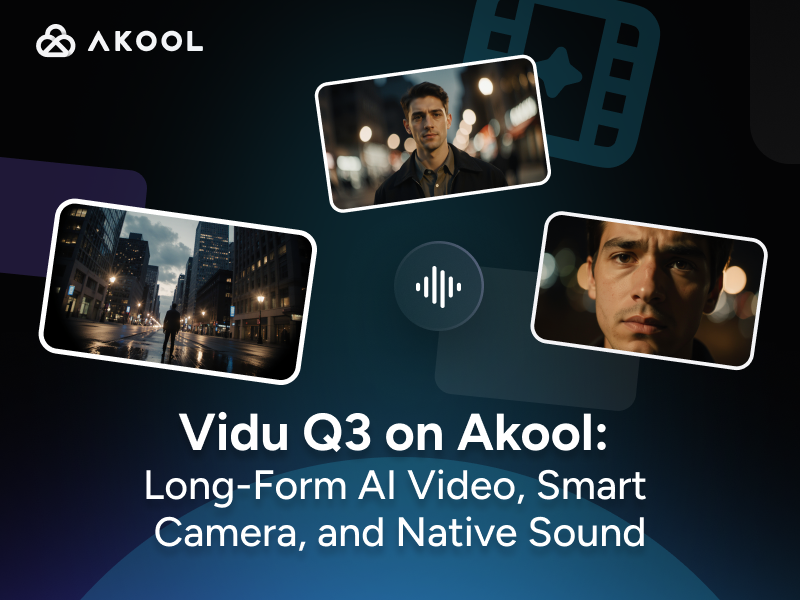
Introduction to Vidu Q3
Long‑form, story‑driven AI video generation has just taken a big step forward.
Vidu Q3 is a next‑generation AI video model designed for narrative content, ads, and social clips where visuals and sound must work together. Instead of generating silent footage and adding audio later, Vidu Q3 creates native audio and video in a single pass, giving you synchronized dialogue, music, and sound effects that match the edit.
Key aspects of Vidu Q3:
- Generates videos up to 15 seconds long
- Supports text‑to‑video and image‑to‑video
- Produces 1080p cinematic quality
- Integrates audio‑visual sync with lip‑sync, background music, and SFX
Now that Vidu Q3 is available inside Akool, you can use it as a powerful engine for both text‑to‑video AI and image‑to‑video AI right alongside your other Akool models and workflows.
Key Features & Major Upgrades of Vidu Q3
1. Up to 15 Seconds of Native Audio‑Video
Most AI video models still top out at short, silent clips. Vidu Q3 is built for longer, richer stories:
- Up to 15 seconds per generation
- Native audio‑video synthesis in one output
- Supports synchronized dialogue, sound effects, and background music
Because audio and video are generated together, you get:
- Natural lip‑sync for characters
- Audio that follows cuts, motion, and emotional beats
- Fewer post‑production steps to make the video feel “finished”
For narrative shorts, product explainers, and social ads, this is a major upgrade over purely visual models.
2. Multi‑Shot Storytelling & Smart Camera Control
Vidu Q3 is built for multi‑shot storytelling, not just single continuous shots:
- Smart cuts technology automatically switches between angles and scenes, mimicking professional editing.
- Cinematic camera control understands moves like pans, push‑ins, tracking shots, and orbits, so shots feel intentionally directed.
This means a single Vidu Q3 clip can include:
- An opening wide shot
- A mid‑shot for dialogue
- A close‑up or detail shot
All with smooth transitions and consistent visual logic.
3. Dual Modes: Text‑to‑Video and Image‑to‑Video
Vidu Q3 is a multimodal AI video generator, equally strong in:
- Text‑to‑Video (T2V):
Turn scene descriptions or scripts into cinematic clips with realistic motion or anime‑style animation. - Image‑to‑Video (I2V):
Animate a static image into a dynamic video, preserving character identity and scene details while adding natural motion.
This dual capability lets you:
- Start from text only when you have an idea but no visuals yet
- Start from an image when you already have a key frame, design, or product photo you want to bring to life
4. Cinematic Stability & High‑Quality Output
Vidu Q3 focuses heavily on temporal coherence and action quality:
- Consistent characters and objects across frames
- Strong performance on action, physics, and multi‑character interactions
- Native 1080p output (with options for 540p / 720p / 1080p)
For Akool users, this means Vidu Q3 isn’t just good for stylized clips; it’s also strong enough for commercial‑grade AI video generation.
How to Use Vidu Q3 in Akool (Text‑to‑Video & Image‑to‑Video)
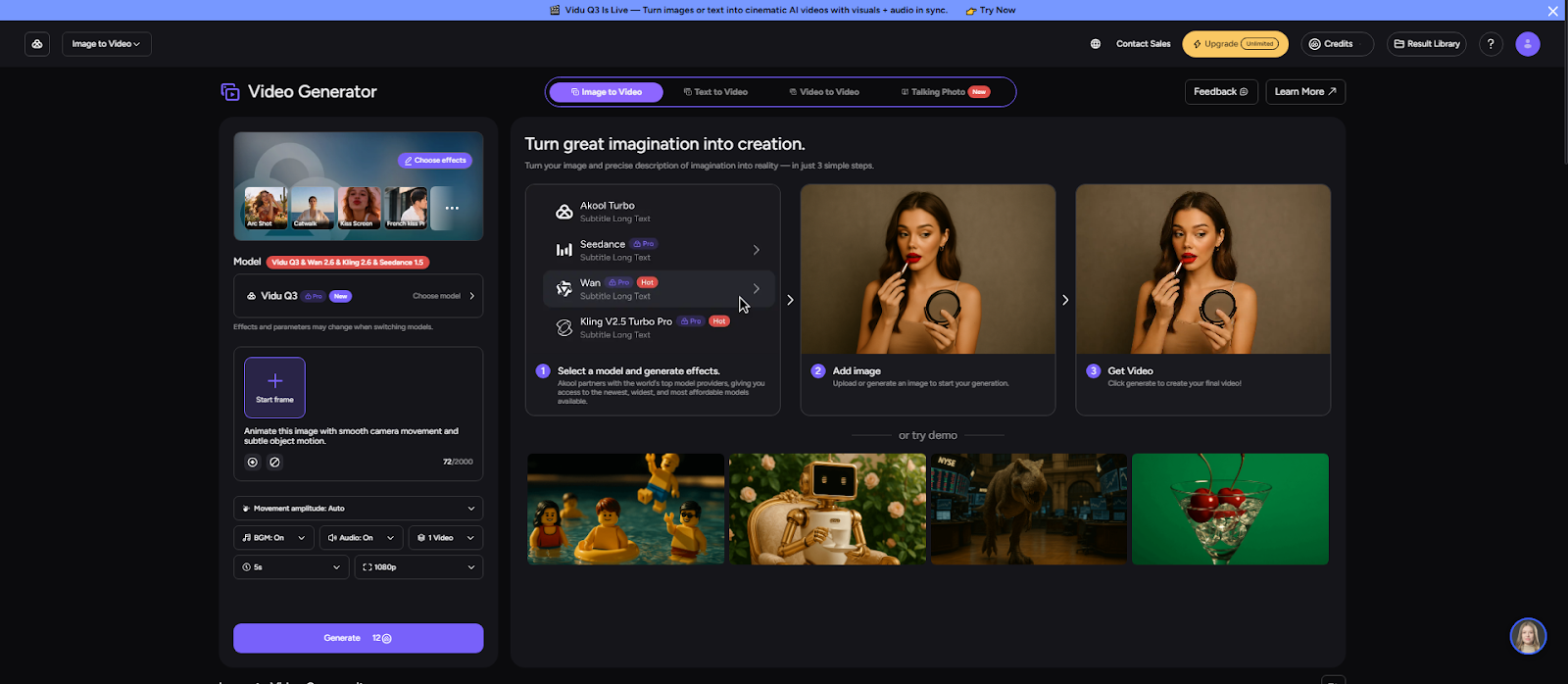
In Akool, Vidu Q3 is available as a selectable model inside the AI video tools. You can use it in both text‑to‑video and image‑to‑video workflows.
The exact UI labels may vary slightly, but the overall steps are consistent.
Step 1 – Open Akool’s AI Video Workspace
- Log in to your Akool account.
- Go to the Image to Video section.
- In the model dropdown, select Vidu Q3 as your AI video model.
Step 2 – Choose Your Mode: Text‑to‑Video or Image‑to‑Video
You have two main ways to drive Vidu Q3 in Akool:
- Text‑to‑Video (T2V)
- Best when you’re starting from a script, idea, or storyboard.
- You’ll provide a detailed text description of the scene, actions, and tone.
- Image‑to‑Video (I2V)
- Best when you already have a key visual (character art, product image, concept frame).
- You’ll upload that image so Vidu Q3 can animate it with natural motion.
Select the mode that fits your project.
Step 3 – Configure Core Settings
For both modes, Akool typically lets you configure:
- Duration: choose up to 15 seconds depending on your plan and project.
- Resolution: pick 540p / 720p / 1080p based on where the video will be used.
- Style / aspect ratio: (e.g., General vs Anime, 15:9 vs 9:15) if exposed in your Akool workspace.
For text‑to‑video:
- Enter a clear scene description that covers visuals and audio (e.g., mood, music type, speech). Vidu Q3’s native audio‑video engine will use this to generate synchronized sound.
For image‑to‑video:
- Upload your image and, if available, add a short description to guide motion and atmosphere.
Step 4 – Generate & Review
- Click Generate to let Vidu Q3 AI video create your clip.
- Preview the result, focusing on:
- Audio‑visual sync (dialogue, music, SFX)
- Camera motion and scene transitions
- Character consistency and overall quality
If you want changes, adjust your text description, duration, or style settings and generate again.
Step 5 – Export & Use Across Channels
Once you’re happy with the video:
- Export from Akool in your chosen resolution and aspect ratio.
- Use the Vidu Q3 video in:
- TikTok, Reels, Shorts, YouTube
- Ad campaigns and landing pages
- Storytelling content, trailers, and explainers
Because Vidu Q3 is optimized for multi‑shot, audio‑synced storytelling, many outputs will be close to publish‑ready out of the box.
Conclusion
Vidu Q3 represents a major leap in AI video generation: up to 15‑second clips, native audio‑video in one pass, multi‑shot storytelling, smart camera control, and dual text‑to‑video / image‑to‑video modes all engineered for cinematic, narrative content.
With Vidu Q3 now integrated into Akool, you don’t need to juggle multiple tools or platforms. You can:
- Pick Vidu Q3 as your model
- Start from text or images
- Generate audio‑synced, multi‑shot videos in minutes
If you’re looking to upgrade your content—from social clips and ads to concept films and explainers—this is the right time to put Vidu Q3 AI video to work.